Code snapshot tutorial - ten languages, highlight rows and export sizing
This walkthrough follows the real order of work: what the tool is for, what each control does, a five step pass, and a self-check before you ship the export.
When to use
Screenshots of code are often blurry, carry editor chrome and leak file paths. This tool re-typesets your snippet with a monospace font, a chosen palette, optional line numbers and window chrome, then renders a clean high resolution image.
Rendering happens in a local canvas with no external service. Edit font size or theme and the preview reflows instantly; export renders at twice the pixel density so it stays sharp in slides and articles.
Forty lines at 1200x630 with 2x export take about 0.2 s from click to file. Syntax colouring scans rows and draws once, so no DOM node is created per character and long code does not bloat the page.
Switching language recolours without re-laying out the canvas, and export goes through toBlob, so repeated exports do not stack canvases and the preview keeps the latest style.
Steps
- Paste code into the editor, or load the sample.
- Pick language, theme, font size and padding; toggle line numbers, chrome and shadow.
- Watch the preview update; long code widens the canvas instead of wrapping.
- Export PNG or copy the image, then paste it into your document.
- Change options and export again at any time; your code is never modified.
Screenshots
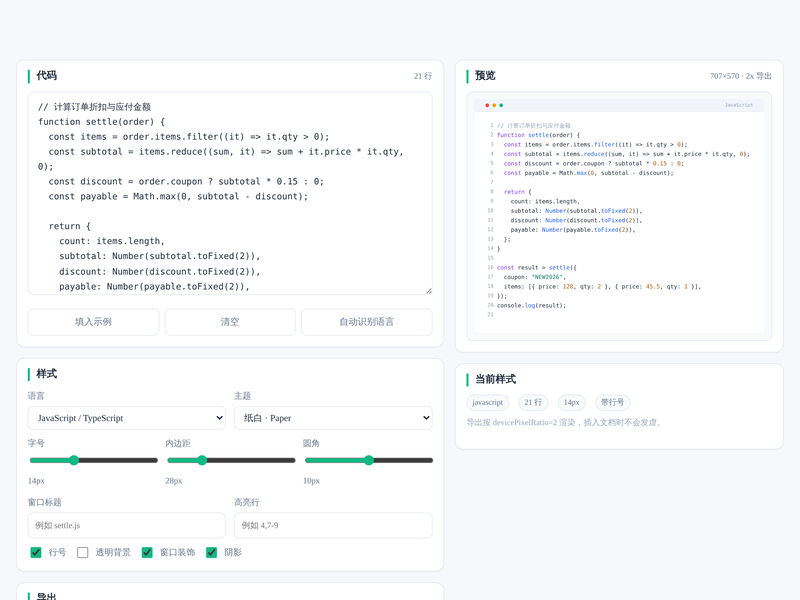
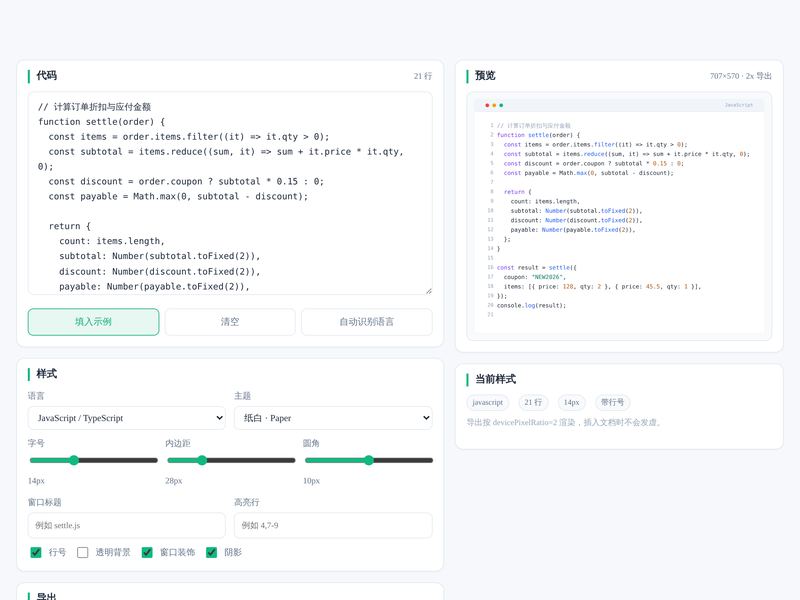
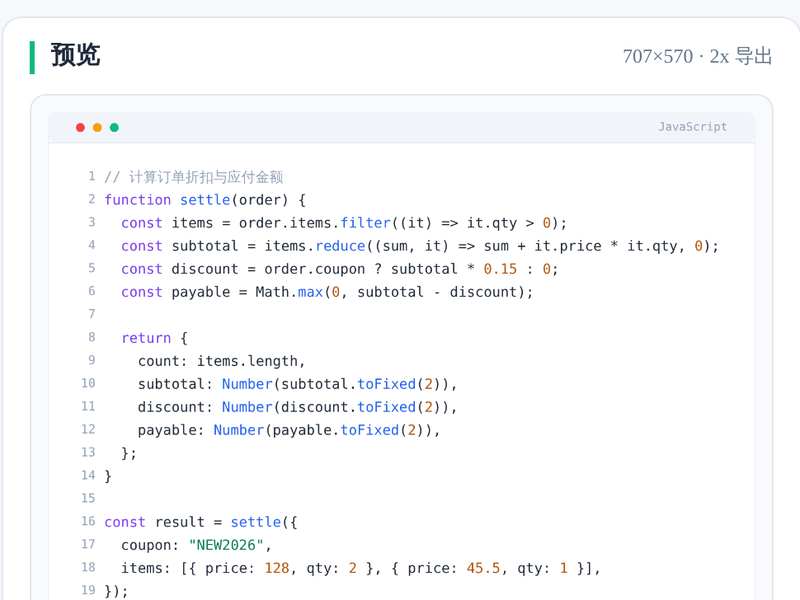
These three shots come from the final build of this plugin.
Features in detail
Six palettes:three light and three dark, with matched foreground and comment colours.
Seven highlighters: JavaScript/TypeScript, Python, Go, PHP, SQL, JSON and Bash.
Layout controls: font size, padding, line numbers, window dots, language label, radius and shadow.
Live preview within 200 ms; long lines widen the canvas instead of being clipped.
2x PNG export, plus copy the image to the clipboard.
Theme and layout choices are remembered locally.
What you get
Inputs
- Plain text, ideally under 80 lines and 200 characters per line.
- Language among JS/TS, Python, Go, PHP, SQL, JSON and Bash.
- Font size 11 to 20 px, padding 16 to 64 px, line numbers and chrome toggles, radius 0 to 20 px.
Outputs
- A PNG rendered at 2x, named like code-js-20261119-1042.png.
- Copy as PNG to the clipboard is also available.
Parameters
The workspace exposes 11 controls, from 语言 to 窗口装饰, and every one of them only affects the local rendering: nothing is sent back to a server.
Ranges and defaults: 语言 (JavaScript / TypeScript / Python / Go / PHP), 主题 (纸白 · Paper / 浅灰 · Slate / 暖米 · Sand / 深蓝 · Navy), 字号 (11–20(默认 14)), 内边距 (16–64(默认 28)), 圆角 (0–20(默认 10)). Values outside the slider range are rejected rather than silently clamped.
| Control | Type | Range or options |
|---|---|---|
| 语言 | select | JavaScript / TypeScript / Python / Go / PHP |
| 主题 | select | 纸白 · Paper / 浅灰 · Slate / 暖米 · Sand / 深蓝 · Navy |
| 字号 | range | 11–20(默认 14) |
| 内边距 | range | 16–64(默认 28) |
| 圆角 | range | 0–20(默认 10) |
| 窗口标题 | text | - |
| 高亮行 | text | - |
| 高亮行 | switch | - |
| 行号 | switch | - |
| 透明背景 | switch | - |
| 窗口装饰 | switch | - |
Typical cases
- A clean code figure for technical documentation without editor chrome.
- Consistent code screenshots for a blog or newsletter.
- High resolution snippets for slides.
In each of these cases the pass is the same: load the file, make one change, check the preview, export and reopen. Skipping the reopen step is why people later discover a transparent halo or a truncated table that looked fine on screen.
A worked pass
Step 1: Paste code into the editor, or load the sample. Read the hint line before touching anything: it tells you which prerequisite is missing.
Step 2: Pick language, theme, font size and padding; toggle line numbers, chrome and shadow. Do not start with the most extreme setting; one small change is enough to see whether the result moves in the right direction.
Step 3: Watch the preview update; long code widens the canvas instead of wrapping. Check the preview at 100% rather than the fitted view, because artefacts often hide in the downsampled version.
Step 4: Export PNG or copy the image, then paste it into your document. Export once, open the file in a local viewer, and only then decide the settings are final.
Step 5: Change options and export again at any time; your code is never modified. Keep the source file untouched so you can repeat the pass with a different setting without re-importing.
Walking through the controls
The 语言 dropdown offers JavaScript / TypeScript / Python / Go / PHP. Switching it re-renders the preview immediately, so compare two neighbouring options rather than jumping across the whole list; the exported file follows the option that is selected at the moment you press export, not the one you looked at earlier.
The 主题 dropdown offers 纸白 · Paper / 浅灰 · Slate / 暖米 · Sand / 深蓝 · Navy. Switching it re-renders the preview immediately, so compare two neighbouring options rather than jumping across the whole list; the exported file follows the option that is selected at the moment you press export, not the one you looked at earlier.
The 字号 slider is bounded by 11–20(默认 14). Keep it near the default for a first pass, then move one step at a time: each step is visible in the preview, and moving it in large jumps makes it impossible to tell which setting produced the artefact you are trying to remove. Values outside the range are rejected instead of being silently clamped, so the number in the readout always matches what the export will use.
The 内边距 slider is bounded by 16–64(默认 28). Keep it near the default for a first pass, then move one step at a time: each step is visible in the preview, and moving it in large jumps makes it impossible to tell which setting produced the artefact you are trying to remove. Values outside the range are rejected instead of being silently clamped, so the number in the readout always matches what the export will use.
The 圆角 slider is bounded by 0–20(默认 10). Keep it near the default for a first pass, then move one step at a time: each step is visible in the preview, and moving it in large jumps makes it impossible to tell which setting produced the artefact you are trying to remove. Values outside the range are rejected instead of being silently clamped, so the number in the readout always matches what the export will use.
The 窗口标题 field accepts free text. Paste a realistic value rather than a placeholder, because both the preview and the exported file depend on what you type here; an empty value usually means the tool falls back to a default derived from the file itself.
The 高亮行 field accepts free text. Paste a realistic value rather than a placeholder, because both the preview and the exported file depend on what you type here; an empty value usually means the tool falls back to a default derived from the file itself.
The 高亮行 switch is a binary choice. Turn it off first to record what the default output looks like, then turn it back on and export once so you can confirm the difference survives outside the preview. On a slow machine the redraw is scheduled rather than immediate, so wait for the status line to settle before judging the result.
The 行号 switch is a binary choice. Turn it off first to record what the default output looks like, then turn it back on and export once so you can confirm the difference survives outside the preview. On a slow machine the redraw is scheduled rather than immediate, so wait for the status line to settle before judging the result.
The 透明背景 switch is a binary choice. Turn it off first to record what the default output looks like, then turn it back on and export once so you can confirm the difference survives outside the preview. On a slow machine the redraw is scheduled rather than immediate, so wait for the status line to settle before judging the result.
The 窗口装饰 switch is a binary choice. Turn it off first to record what the default output looks like, then turn it back on and export once so you can confirm the difference survives outside the preview. On a slow machine the redraw is scheduled rather than immediate, so wait for the status line to settle before judging the result.
Practical notes
Keep the browser window above 1200 pixels wide while working: below that the right column collapses under the left one and you lose the side-by-side view.
Use the reset control between experiments; carrying state from a previous pass is the most common reason a setting appears to have no effect.
If a control looks unresponsive, check the hint line first: most no-op states are caused by a missing file rather than a broken button.
Export after every meaningful change rather than at the very end, so you still have a known-good file if the next experiment goes wrong.
On a laptop with a scaled display the preview is drawn at device pixel ratio, so text that looks crisp on screen stays crisp in the exported image at the same size.
Compare your result against the limits section: if you are working outside the documented range, the tool may still run but the output quality is not guaranteed.
Long sessions are fine because nothing is uploaded, but reload before switching to a different kind of file so cached state cannot leak into the new pass.
The controls you will touch most often here are 语言, 主题, 字号, 内边距.
Self-check list
Run the workflow once with a real file and confirm the result pane shows content, not the empty state.
Push every slider to its minimum and maximum and confirm the readout follows without an error.
Switch each dropdown and confirm the preview and the export change together.
Export once and reopen the file with a local viewer to confirm it is not truncated.
Reset the workspace and confirm all panels return to the empty state.
Reload the page and confirm no previous result is restored by accident.
FAQ
Q: Some keywords are not coloured
A: That language keyword table does not cover them; highlighting is cosmetic and the code stays copyable.
Q: Can I enlarge the exported image?
A: It is already 2x; for larger output raise the font size and export again.
Q: Does HTML work?
A: Yes, but it is coloured with the JS rules and tags appear as plain text.
Q: Does long code get cut off?
A: Past 80 rows the font shrinks automatically and can still overflow. Split the snippet, or set the font size to 12 px before exporting.
Q: Does the file leave my device?
A: No. Everything runs inside the browser; requireNetwork is false and no upload happens.
Q: Which browsers does it run in?
A: Current Chrome, Edge, Firefox and Safari builds; no extension or plugin is needed.
Q: Why does the exported file differ in size from the source?
A: The export re-encodes the result, so size follows the chosen format and quality settings.
Limits
- No syntax tree analysis, so unusual constructs may colour incorrectly.
- Glyphs depend on the local font stack.
- No GIF, video or interactive code block export.
Version and compliance
This build is v1.0.0 on ToolCMS plugin spec 3.19, schemaVersion 2.1 and coreVersion 3.7.4. All processing happens inside the browser, requireNetwork is false and no file leaves the device.