DOCX to Markdown tutorial - headings, lists, tables and the full image list
This walkthrough follows the real order of work: what the tool is for, what each control does, a five step pass, and a self-check before you ship the export.
When to use
Moving a Word document into a docs site, a Git repository or a knowledge base is mostly retyping: heading levels, bullets and pipe tables. This tool reads the docx structure directly and rebuilds Markdown from the styles Word already stores.
Everything runs in the browser: the file is unpacked and parsed locally, so the document never leaves your machine. It suits technical documentation migration, README writing and turning specs into repository docs.
A 10,000-character docx parses to Markdown in about 0.1 s. The original XML stays cached, so toggling code blocks, quotes or the image list re-runs conversion without unzipping the file again.
Images are listed by rels name only, never inlined as base64, which keeps the Markdown from growing by hundreds of kilobytes. Inline them separately when you really need a self-contained file.
Steps
- Drop a .docx or pick one; up to 20 MB.
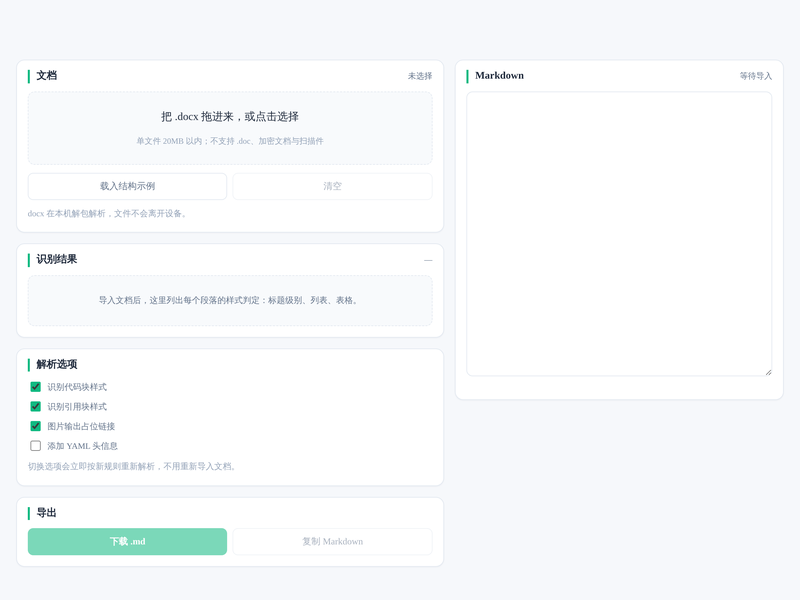
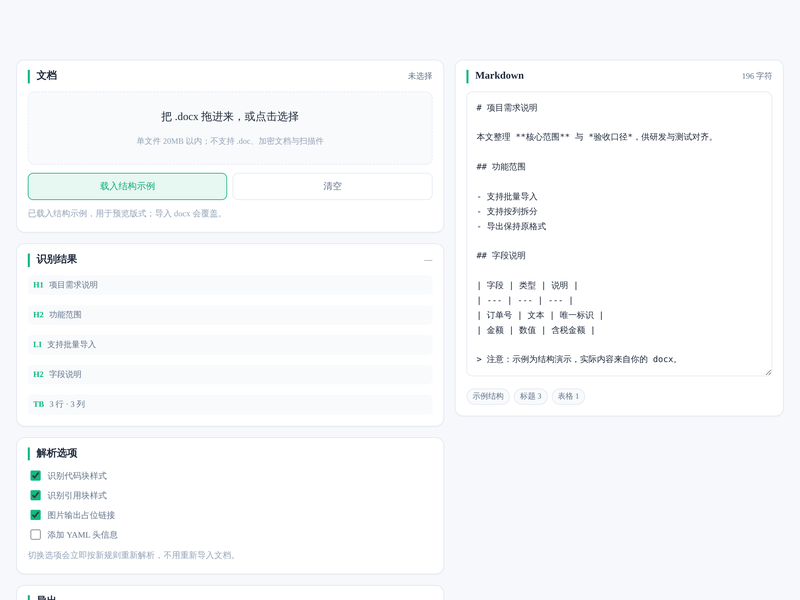
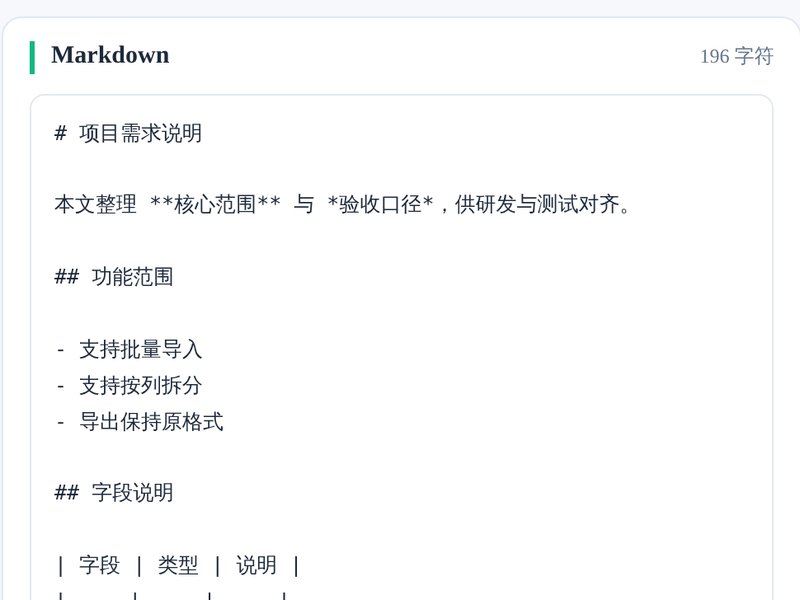
- Wait for parsing; the Markdown preview appears on the right.
- Check headings and tables: paragraphs merely bolded in Word stay as body text.
- Copy or download the result and use it in your docs.
- If parsing fails, check the hint: encrypted files, .doc and scans have no readable structure.
Screenshots
These three shots come from the final build of this plugin.
Features in detail
Heading levels from Heading 1 to 6, including localised style names.
Bold, italic, bold italic, strikethrough and inline code restored per run.
Bullets and numbered lists with two indent levels and automatic numbering.
Tables become pipe tables with padded columns; line breaks inside cells become <br>.
Hyperlinks resolved through document relationships.
Live two-pane preview plus character, paragraph, heading and table counts.
What you get
Inputs
- A single .docx up to 20 MB; no .doc, .docm, encrypted files or scans.
- Conversion uses paragraph styles and numbering properties, not page layout.
Outputs
- Markdown text, copyable or downloaded as a same-named .md file.
- Counts of characters, paragraphs, headings, tables and list items.
Parameters
The workspace exposes 4 controls, from 把 .docx 拖进来,或点击选择
to 图片输出占位链接, and every one of them only affects the local rendering: nothing is sent back to a server.
| Control | Type | Range or options |
|---|---|---|
| 把 .docx 拖进来,或点击选择 | ||
| switch | - | |
| 识别代码块样式 | switch | - |
| 识别引用块样式 | switch | - |
| 图片输出占位链接 | switch | - |
Typical cases
- Moving a product spec from Word into a repository wiki.
- Migrating technical docs to a static site with headings and tables intact.
- Turning meeting notes into Markdown for an editor.
In each of these cases the pass is the same: load the file, make one change, check the preview, export and reopen. Skipping the reopen step is why people later discover a transparent halo or a truncated table that looked fine on screen.
A worked pass
Step 1: Drop a .docx or pick one; up to 20 MB. Read the hint line before touching anything: it tells you which prerequisite is missing.
Step 2: Wait for parsing; the Markdown preview appears on the right. Do not start with the most extreme setting; one small change is enough to see whether the result moves in the right direction.
Step 3: Check headings and tables: paragraphs merely bolded in Word stay as body text. Check the preview at 100% rather than the fitted view, because artefacts often hide in the downsampled version.
Step 4: Copy or download the result and use it in your docs. Export once, open the file in a local viewer, and only then decide the settings are final.
Step 5: If parsing fails, check the hint: encrypted files, .doc and scans have no readable structure. Keep the source file untouched so you can repeat the pass with a different setting without re-importing.
Walking through the controls
The 把 .docx 拖进来,或点击选择
switch is a binary choice. Turn it off first to record what the default output looks like, then turn it back on and export once so you can confirm the difference survives outside the preview. On a slow machine the redraw is scheduled rather than immediate, so wait for the status line to settle before judging the result.
The 识别代码块样式 switch is a binary choice. Turn it off first to record what the default output looks like, then turn it back on and export once so you can confirm the difference survives outside the preview. On a slow machine the redraw is scheduled rather than immediate, so wait for the status line to settle before judging the result.
The 识别引用块样式 switch is a binary choice. Turn it off first to record what the default output looks like, then turn it back on and export once so you can confirm the difference survives outside the preview. On a slow machine the redraw is scheduled rather than immediate, so wait for the status line to settle before judging the result.
The 图片输出占位链接 switch is a binary choice. Turn it off first to record what the default output looks like, then turn it back on and export once so you can confirm the difference survives outside the preview. On a slow machine the redraw is scheduled rather than immediate, so wait for the status line to settle before judging the result.
Practical notes
Keep the browser window above 1200 pixels wide while working: below that the right column collapses under the left one and you lose the side-by-side view.
Use the reset control between experiments; carrying state from a previous pass is the most common reason a setting appears to have no effect.
If a control looks unresponsive, check the hint line first: most no-op states are caused by a missing file rather than a broken button.
Export after every meaningful change rather than at the very end, so you still have a known-good file if the next experiment goes wrong.
On a laptop with a scaled display the preview is drawn at device pixel ratio, so text that looks crisp on screen stays crisp in the exported image at the same size.
Compare your result against the limits section: if you are working outside the documented range, the tool may still run but the output quality is not guaranteed.
Long sessions are fine because nothing is uploaded, but reload before switching to a different kind of file so cached state cannot leak into the new pass.
The controls you will touch most often here are 把 .docx 拖进来,或点击选择
, 识别代码块样式, 识别引用块样式, 图片输出占位链接.
Self-check list
Run the workflow once with a real file and confirm the result pane shows content, not the empty state.
Push every slider to its minimum and maximum and confirm the readout follows without an error.
Switch each dropdown and confirm the preview and the export change together.
Export once and reopen the file with a local viewer to confirm it is not truncated.
Reset the workspace and confirm all panels return to the empty state.
Reload the page and confirm no previous result is restored by accident.
FAQ
Q: Why did my heading stay plain text?
A: It was not using a heading style, only a larger bold font; apply Heading 1 in Word and convert again.
Q: Where did images go?
A: Images are not part of Markdown; export them separately and link them.
Q: It says the file is not a valid docx
A: It may be a renamed .doc or encrypted; save an unencrypted .docx from Word.
Q: Will a huge document freeze the page?
A: Up to 100,000 characters it takes about 0.2 s. Larger files pause the interface briefly while unzipping, since it runs on the main thread; split the document by chapter.
Q: Does the file leave my device?
A: No. Everything runs inside the browser; requireNetwork is false and no upload happens.
Q: Which browsers does it run in?
A: Current Chrome, Edge, Firefox and Safari builds; no extension or plugin is needed.
Q: Why does the exported file differ in size from the source?
A: The export re-encodes the result, so size follows the chosen format and quality settings.
Limits
- docx only; no doc, docm, encryption or OCR.
- No images, headers, footers, footnotes, text boxes or columns.
- Merged and nested tables degrade to plain tables.
Version and compliance
This build is v1.0.0 on ToolCMS plugin spec 3.19, schemaVersion 2.1 and coreVersion 3.7.4. All processing happens inside the browser, requireNetwork is false and no file leaves the device.