Git command builder tutorial - seven scenarios, cross-scenario search and favourites
This walkthrough follows the real order of work: what the tool is for, what each control does, a five step pass, and a self-check before you ship the export.
When to use
Git has few commands but many situations. You revert the wrong thing, push to the wrong branch, delete a branch by accident, or need to roll back a release. This tool lists the common situations by scenario, and after two parameters you get a command you can paste into a terminal, with a line explaining what it does and what it risks.
The other half is .gitignore. Instead of hand-writing node_modules, build output, IDE folders and OS junk, tick the stacks and environments you use and get a merged, deduplicated ignore file.
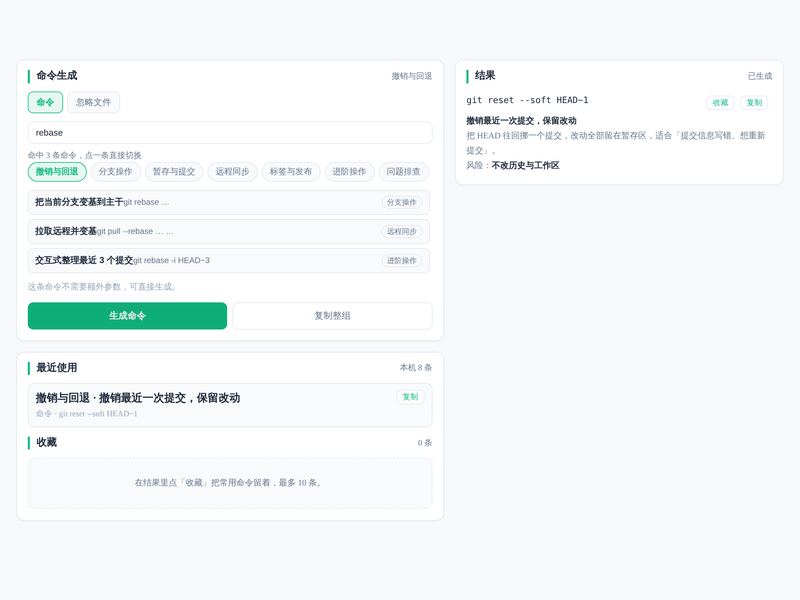
Seven scenarios and more than sixty commands live in a local array. Search is a substring filter, so results appear as you type; measured round trip stays under 16 ms and nothing is requested from a server.
Command text is maintained as scenario constants rather than model output. Favourites cap at ten entries in localStorage and disappear with browser data; no repository information is stored anywhere.
Steps
- Pick a scenario, then an operation; the right column fills with a parameterised command.
- Fill branch, commit, remote or path. Empty parameters stay as placeholders you can replace after copying.
- Read the explanation and risk label before copying; dangerous commands are shown in red.
- Switch to the ignore tab and tick the stacks, systems and editors your project uses.
- Copy the command or download the .gitignore, then use it in your project.
Screenshots
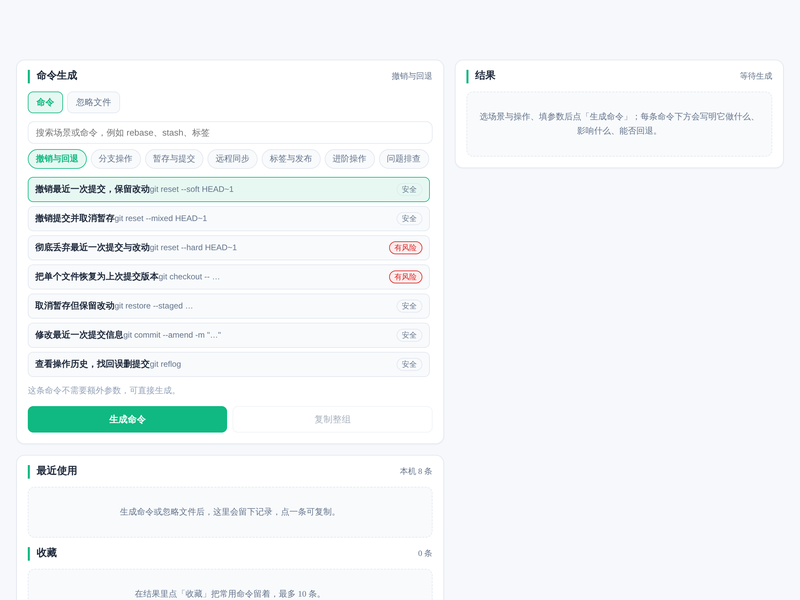
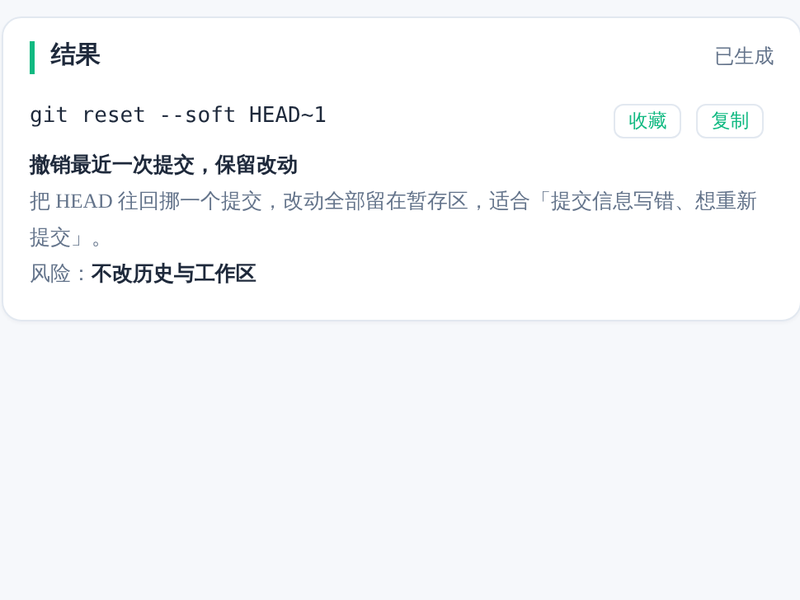
These three shots come from the final build of this plugin.
Features in detail
Six scenarios with more than forty common commands: undo, branches, staging, remotes, tags, troubleshooting.
Parameter substitution for branch, commit, remote, tag and path, with no angle brackets left behind once filled.
Per-command explanation of effect, scope and reversibility, with dangerous commands marked in red.
One-click copy of a single command or the whole set, without the explanation text.
A gitignore generator merging more than forty rule groups across stacks, operating systems and editors.
Recent picks are kept locally and restored on reload.
What you get
Inputs
- Commands: choose a scenario and operation, then fill branch, commit, remote, tag or path.
- Ignore: tick stacks, operating systems, editors and toolchains; selections stack.
- Empty parameters are emitted as placeholders to replace after copying.
Outputs
- Command text with per-line explanations and a risk level, copyable singly or as a group.
- A merged, deduplicated plain-text ignore file ready to download as .gitignore.
Parameters
The workspace exposes 1 controls, from 搜索命令 to 搜索命令, and every one of them only affects the local rendering: nothing is sent back to a server.
| Control | Type | Range or options |
|---|---|---|
| 搜索命令 | search | - |
Typical cases
- Undoing a commit that has a wrong message or an accidentally added file while keeping the changes.
- Rebasing a feature branch onto main, or recovering a deleted branch.
- Writing a .gitignore for a new project or completing one for an existing repository.
In each of these cases the pass is the same: load the file, make one change, check the preview, export and reopen. Skipping the reopen step is why people later discover a transparent halo or a truncated table that looked fine on screen.
A worked pass
Step 1: Pick a scenario, then an operation; the right column fills with a parameterised command. Read the hint line before touching anything: it tells you which prerequisite is missing.
Step 2: Fill branch, commit, remote or path. Empty parameters stay as placeholders you can replace after copying. Do not start with the most extreme setting; one small change is enough to see whether the result moves in the right direction.
Step 3: Read the explanation and risk label before copying; dangerous commands are shown in red. Check the preview at 100% rather than the fitted view, because artefacts often hide in the downsampled version.
Step 4: Switch to the ignore tab and tick the stacks, systems and editors your project uses. Export once, open the file in a local viewer, and only then decide the settings are final.
Step 5: Copy the command or download the .gitignore, then use it in your project. Keep the source file untouched so you can repeat the pass with a different setting without re-importing.
Walking through the controls
The 搜索命令 field accepts free text. Paste a realistic value rather than a placeholder, because both the preview and the exported file depend on what you type here; an empty value usually means the tool falls back to a default derived from the file itself.
Practical notes
Keep the browser window above 1200 pixels wide while working: below that the right column collapses under the left one and you lose the side-by-side view.
Use the reset control between experiments; carrying state from a previous pass is the most common reason a setting appears to have no effect.
If a control looks unresponsive, check the hint line first: most no-op states are caused by a missing file rather than a broken button.
Export after every meaningful change rather than at the very end, so you still have a known-good file if the next experiment goes wrong.
On a laptop with a scaled display the preview is drawn at device pixel ratio, so text that looks crisp on screen stays crisp in the exported image at the same size.
Compare your result against the limits section: if you are working outside the documented range, the tool may still run but the output quality is not guaranteed.
Long sessions are fine because nothing is uploaded, but reload before switching to a different kind of file so cached state cannot leak into the new pass.
The controls you will touch most often here are 搜索命令.
Self-check list
Run the workflow once with a real file and confirm the result pane shows content, not the empty state.
Push every slider to its minimum and maximum and confirm the readout follows without an error.
Switch each dropdown and confirm the preview and the export change together.
Export once and reopen the file with a local viewer to confirm it is not truncated.
Reset the workspace and confirm all panels return to the empty state.
Reload the page and confirm no previous result is restored by accident.
FAQ
Q: Why do angle brackets appear?
A: A parameter was left empty, so a placeholder was used; fill branch or commit and they disappear.
Q: I added ignore rules but files still show
A: They are already tracked; run git rm --cached and commit again.
Q: Can I recover after reset --hard?
A: Uncommitted work is generally gone; committed work may still be in reflog if you act quickly.
Q: Are the generated commands current?
A: They are stable wordings for regular Git usage after 2.23. For newer subcommands the parameter fields still work with a branch or path, though the explanation follows the older syntax.
Q: Does the file leave my device?
A: No. Everything runs inside the browser; requireNetwork is false and no upload happens.
Q: Which browsers does it run in?
A: Current Chrome, Edge, Firefox and Safari builds; no extension or plugin is needed.
Q: Why does the exported file differ in size from the source?
A: The export re-encodes the result, so size follows the chosen format and quality settings.
Limits
- Generates text only; it never executes, connects to a repository or reads repository state.
- Ignore rules are generic templates and exclude project-private paths and secret files.
- No interactive rebase walkthrough or conflict resolution details.
Version and compliance
This build is v1.0.0 on ToolCMS plugin spec 3.19, schemaVersion 2.1 and coreVersion 3.7.4. All processing happens inside the browser, requireNetwork is false and no file leaves the device.