Markdown editor tutorial - live preview, GitHub tables and one-click export
This walkthrough follows the real order of work: what the tool is for, what each control does, a five step pass, and a self-check before you ship the export.
When to use
Markdown is the fastest way to draft a README or an article, but many online editors either lack a preview or lose the draft on refresh. This tool keeps editing, preview and export on one screen. Type on the left, see the rendered result on the right, and every two seconds the draft is saved in your browser.
It is not a note-taking system. It solves one loop: write some Markdown, check how it looks, export a file you can send.
On a 10,000-character document the preview updates about 33 ms after you stop typing, one frame. Rendering works in line blocks, so only the rows around the edit are re-laid out and scrolling the editor never fights the preview.
The draft is written to local storage every two seconds, capped at 200,000 characters per document. Past 80,000 characters the browser reflow cost becomes visible; split long work into chapters.
Steps
- Type in the editor, or press Load sample to see a full draft.
- Select text and press a toolbar button; heading and list buttons insert at the line start.
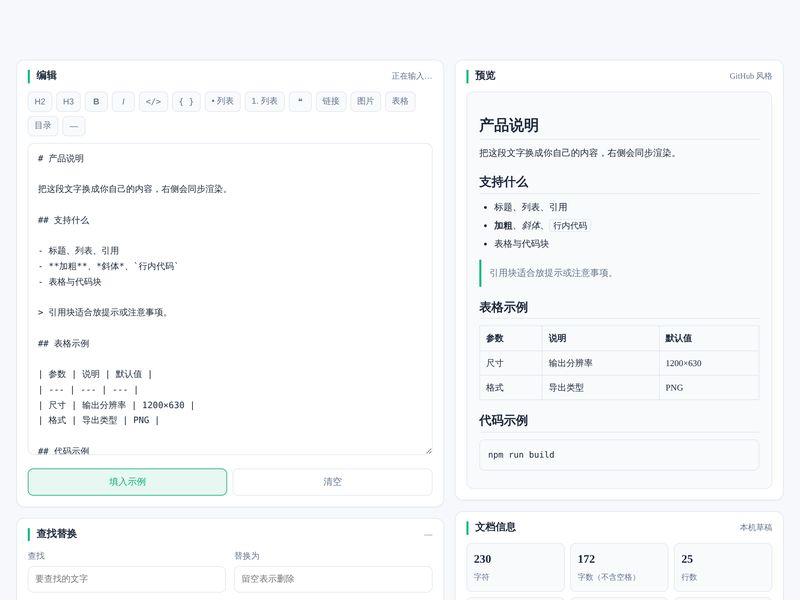
- The preview updates as you type, rendering tables, code and quotes GitHub style.
- Rename the file if needed, then export .md or .html.
- Reloading restores the draft; Clear removes the local copy after confirmation.
Screenshots
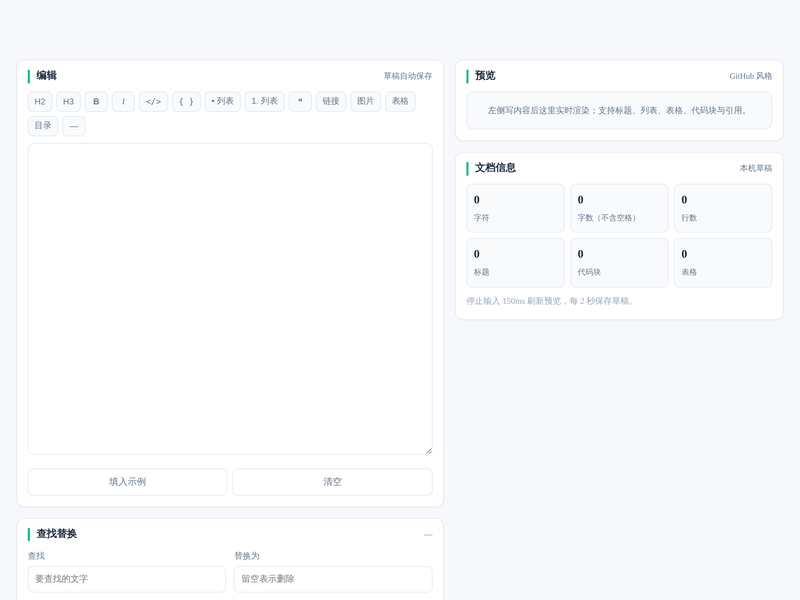
These three shots come from the final build of this plugin.

Features in detail
Live preview re-renders 150 ms after you stop typing.
Toolbar for headings, bold, italic, inline code, code blocks, lists, quotes, links, images, tables and rules.
GitHub-style tables and fenced code blocks with a language label.
Draft autosaved to local storage every two seconds and restored on reload.
Live counts for characters, words without spaces, lines, headings and code blocks.
Two exports:the .md source, or a styled standalone .html file.
What you get
Inputs
- Plain text with headings, lists, tables, code fences, quotes, links, images and rules.
- Toolbar actions wrap the selection or insert placeholder text at the caret.
- Autosave runs every two seconds, roughly up to 200k characters.
Outputs
- .md is UTF-8 plain text with a custom or default file name.
- .html is standalone with inline styling, needing no external CSS or scripts.
Parameters
The workspace exposes 5 controls, from 查找 to 文件名(不含扩展名), and every one of them only affects the local rendering: nothing is sent back to a server.
| Control | Type | Range or options |
|---|---|---|
| 查找 | text | - |
| 替换为 | text | - |
| 替换为 | switch | - |
| 区分大小写 | switch | - |
| 文件名(不含扩展名) | text | - |
Typical cases
- Drafting a README or technical note with instant rendering.
- Building the structure and tables of a long article before pasting into a publishing tool.
- Taking meeting notes as lists and tables, then exporting HTML for colleagues.
In each of these cases the pass is the same: load the file, make one change, check the preview, export and reopen. Skipping the reopen step is why people later discover a transparent halo or a truncated table that looked fine on screen.
A worked pass
Step 1: Type in the editor, or press Load sample to see a full draft. Read the hint line before touching anything: it tells you which prerequisite is missing.
Step 2: Select text and press a toolbar button; heading and list buttons insert at the line start. Do not start with the most extreme setting; one small change is enough to see whether the result moves in the right direction.
Step 3: The preview updates as you type, rendering tables, code and quotes GitHub style. Check the preview at 100% rather than the fitted view, because artefacts often hide in the downsampled version.
Step 4: Rename the file if needed, then export .md or .html. Export once, open the file in a local viewer, and only then decide the settings are final.
Step 5: Reloading restores the draft; Clear removes the local copy after confirmation. Keep the source file untouched so you can repeat the pass with a different setting without re-importing.
Walking through the controls
The 查找 field accepts free text. Paste a realistic value rather than a placeholder, because both the preview and the exported file depend on what you type here; an empty value usually means the tool falls back to a default derived from the file itself.
The 替换为 field accepts free text. Paste a realistic value rather than a placeholder, because both the preview and the exported file depend on what you type here; an empty value usually means the tool falls back to a default derived from the file itself.
The 替换为 switch is a binary choice. Turn it off first to record what the default output looks like, then turn it back on and export once so you can confirm the difference survives outside the preview. On a slow machine the redraw is scheduled rather than immediate, so wait for the status line to settle before judging the result.
The 区分大小写 switch is a binary choice. Turn it off first to record what the default output looks like, then turn it back on and export once so you can confirm the difference survives outside the preview. On a slow machine the redraw is scheduled rather than immediate, so wait for the status line to settle before judging the result.
The 文件名(不含扩展名) field accepts free text. Paste a realistic value rather than a placeholder, because both the preview and the exported file depend on what you type here; an empty value usually means the tool falls back to a default derived from the file itself.
Practical notes
Keep the browser window above 1200 pixels wide while working: below that the right column collapses under the left one and you lose the side-by-side view.
Use the reset control between experiments; carrying state from a previous pass is the most common reason a setting appears to have no effect.
If a control looks unresponsive, check the hint line first: most no-op states are caused by a missing file rather than a broken button.
Export after every meaningful change rather than at the very end, so you still have a known-good file if the next experiment goes wrong.
On a laptop with a scaled display the preview is drawn at device pixel ratio, so text that looks crisp on screen stays crisp in the exported image at the same size.
Compare your result against the limits section: if you are working outside the documented range, the tool may still run but the output quality is not guaranteed.
Long sessions are fine because nothing is uploaded, but reload before switching to a different kind of file so cached state cannot leak into the new pass.
The controls you will touch most often here are 查找, 替换为, 替换为, 区分大小写.
Self-check list
Run the workflow once with a real file and confirm the result pane shows content, not the empty state.
Push every slider to its minimum and maximum and confirm the readout follows without an error.
Switch each dropdown and confirm the preview and the export change together.
Export once and reopen the file with a local viewer to confirm it is not truncated.
Reset the workspace and confirm all panels return to the empty state.
Reload the page and confirm no previous result is restored by accident.
FAQ
Q: Is my draft kept after a refresh?
A: Yes, it autosaves locally every two seconds and restores on reload; it does not sync across devices.
Q: Can I paste the exported HTML into WeChat?
A: You can, but the platform restyles it, so check its own preview.
Q: Why is my table not rendering?
A: A table needs a separator row such as | --- | --- | and the same number of columns on every row.
Q: Does a very long document lag?
A: Under 50,000 characters it stays smooth. Past 80,000 the preview scroll drops frames, which is browser reflow cost and unrelated to network or upload.
Q: Does the file leave my device?
A: No. Everything runs inside the browser; requireNetwork is false and no upload happens.
Q: Which browsers does it run in?
A: Current Chrome, Edge, Firefox and Safari builds; no extension or plugin is needed.
Q: Why does the exported file differ in size from the source?
A: The export re-encodes the result, so size follows the chosen format and quality settings.
Limits
- No footnotes, math, inline HTML or reference-style links.
- Drafts are local only, with no cloud sync or version history.
- Exported HTML uses built-in styling and may differ from the target platform.
Version and compliance
This build is v1.0.0 on ToolCMS plugin spec 3.19, schemaVersion 2.1 and coreVersion 3.7.4. All processing happens inside the browser, requireNetwork is false and no file leaves the device.