Batch QR tutorial - templates, gradients and export
This walkthrough follows the real order of work: what the tool is for, what each control does, a five step pass, and a self-check before you ship the export.
When to use
Generating dozens of codes at once usually means hitting a limit or uploading your content to someone else's server. Here the encoder lives in the plugin: text becomes a matrix locally and canvas draws the PNG, one line per item, bounded only by the browser.
The encoder implements QR byte mode across versions 1 to 10 and all four ECC levels, and all eight masks are scored so the cleanest one wins.
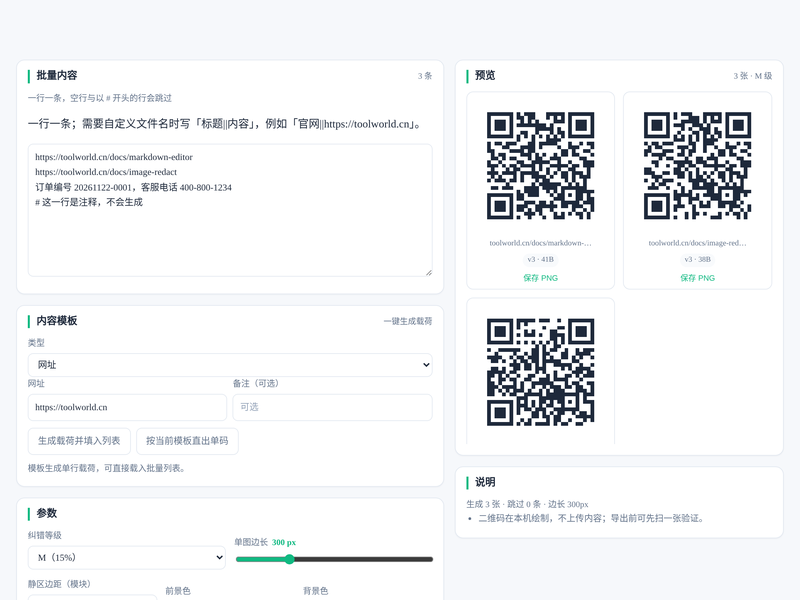
Three short links encode and draw in about 400 ms, roughly 130 ms each.
The bit stream lives in a plain array and the matrix is dropped after drawing, leaving only the canvas; ZIP export takes each blob in turn instead of holding all pixels.
Steps
- Paste one link or ID per line on the left; lines starting with # are treated as comments.
- Pick the ECC level: Q or H for print that may get damaged, L is fine for screens.
- Drag the size and quiet zone and adjust colours; thumbnails redraw as you go.
- Scan the previews quickly to confirm nothing was skipped and nothing looks too dense.
- Save single PNGs or download the ZIP and match files by order when laying out.
Screenshots
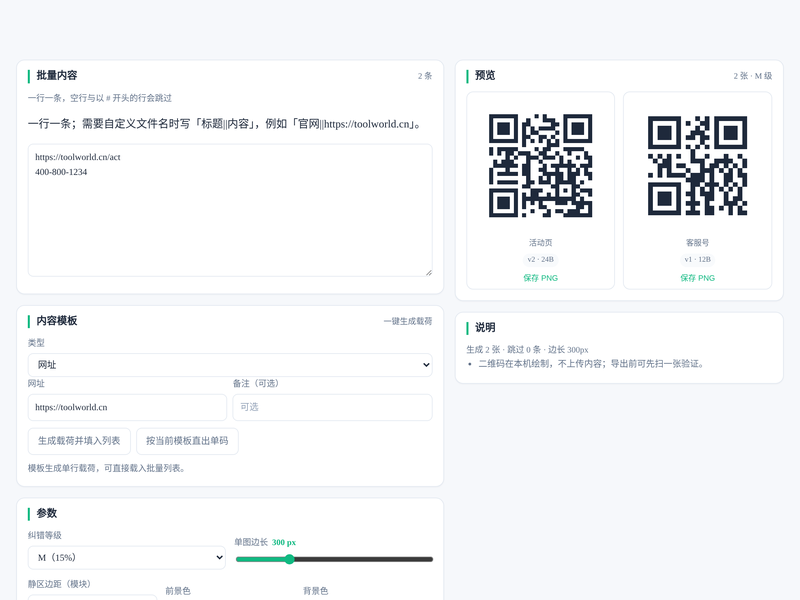
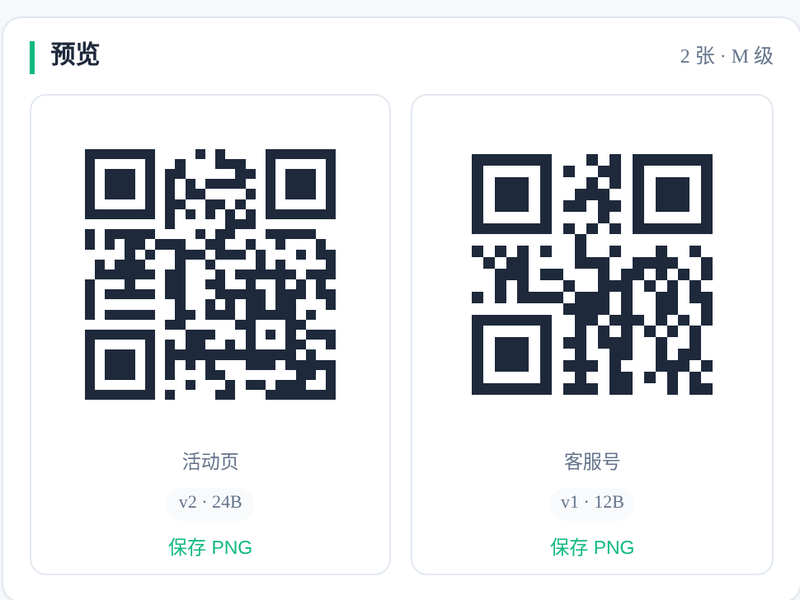
These three shots come from the final build of this plugin.
Features in detail
Bulk input:one line per item, skipping blanks and # comments, with a grid of thumbnails on the right.
Four ECC levels: L, M, Q and H tolerate roughly 7, 15, 25 and 30 percent damage.
Adjustable output: size, quiet zone, foreground and background colours redraw instantly.
Capacity warnings: lines beyond the version 10 byte limit are skipped with the reason shown, never dropped silently.
Single export: each thumbnail carries its own PNG save button.
ZIP export:all images in one archive, numbered by order for batch layout.
What you get
Inputs
- The batch content is required, one item per line, blanks and # lines skipped.
- ECC level, size, quiet zone and colours are adjustable.
Outputs
- One thumbnail per line with its version and byte count.
- Single PNGs or one ZIP, plus the skipped count and reasons.
Parameters
The workspace exposes 18 controls, from Type to Export DPI hint, and every one of them only affects the local rendering: nothing is sent back to a server.
Ranges and defaults: Type (URL / Plain text / WiFi / SMS / Phone / Email / Geo / vCard / MeCard / vEvent), WiFi encryption (WPA/WPA2 / WEP / Open), Error correction (L (7%) / M (15%) / Q (25%) / H (30%)), Image size (300 px) (180–640 (default 300)), Frame (None / Rounded stroke / Double line / Top label), Module shape (Square (most reliable) / Rounded / Dot). Values outside the slider range are rejected rather than silently clamped.
| Control | Type | Range or options |
|---|---|---|
| Type | select | URL / Plain text / WiFi / SMS / Phone / Email / Geo / vCard / MeCard / vEvent |
| WiFi encryption | select | WPA/WPA2 / WEP / Open |
| URL | text | - |
| Caption | text | - |
| Field 3 | text | - |
| Field 4 | text | - |
| Error correction | select | L (7%) / M (15%) / Q (25%) / H (30%) |
| Image size (300 px) | range | 180–640 (default 300) |
| Quiet zone (modules) | number | - |
| Frame | select | None / Rounded stroke / Double line / Top label |
| Module shape | select | Square (most reliable) / Rounded / Dot |
| Boost error correction | switch | - |
| Dot modules (lighter, slightly worse at distance) | switch | - |
| Gradient | select | Solid / Diagonal / Horizontal / Vertical / Radial |
| Logo share % | number | - |
| Bottom caption (blank = none) | text | - |
| Export format | select | PNG / JPEG / SVG |
| Export DPI hint | text | - |
Typical cases
- A event needs booth cards with dozens of QR codes generated once and laid out.
- Turning a batch of order numbers into codes for parcels or sample devices.
- An intranet without access to online generators, where codes must be made offline in the browser.
In each of these cases the pass is the same: load the file, make one change, check the preview, export and reopen. Skipping the reopen step is why people later discover a transparent halo or a truncated table that looked fine on screen.
A worked pass
Step 1: Paste one link or ID per line on the left; lines starting with # are treated as comments. Read the hint line before touching anything: it tells you which prerequisite is missing.
Step 2: Pick the ECC level: Q or H for print that may get damaged, L is fine for screens. Do not start with the most extreme setting; one small change is enough to see whether the result moves in the right direction.
Step 3: Drag the size and quiet zone and adjust colours; thumbnails redraw as you go. Check the preview at 100% rather than the fitted view, because artefacts often hide in the downsampled version.
Step 4: Scan the previews quickly to confirm nothing was skipped and nothing looks too dense. Export once, open the file in a local viewer, and only then decide the settings are final.
Step 5: Save single PNGs or download the ZIP and match files by order when laying out. Keep the source file untouched so you can repeat the pass with a different setting without re-importing.
Walking through the controls
The Type dropdown offers URL / Plain text / WiFi / SMS / Phone / Email / Geo / vCard / MeCard / vEvent. Switching it re-renders the preview immediately, so compare two neighbouring options rather than jumping across the whole list; the exported file follows the option that is selected at the moment you press export, not the one you looked at earlier.
The WiFi encryption dropdown offers WPA/WPA2 / WEP / Open. Switching it re-renders the preview immediately, so compare two neighbouring options rather than jumping across the whole list; the exported file follows the option that is selected at the moment you press export, not the one you looked at earlier.
The URL field accepts free text. Paste a realistic value rather than a placeholder, because both the preview and the exported file depend on what you type here; an empty value usually means the tool falls back to a default derived from the file itself.
The Caption field accepts free text. Paste a realistic value rather than a placeholder, because both the preview and the exported file depend on what you type here; an empty value usually means the tool falls back to a default derived from the file itself.
The Field 3 field accepts free text. Paste a realistic value rather than a placeholder, because both the preview and the exported file depend on what you type here; an empty value usually means the tool falls back to a default derived from the file itself.
The Field 4 field accepts free text. Paste a realistic value rather than a placeholder, because both the preview and the exported file depend on what you type here; an empty value usually means the tool falls back to a default derived from the file itself.
The Error correction dropdown offers L (7%) / M (15%) / Q (25%) / H (30%). Switching it re-renders the preview immediately, so compare two neighbouring options rather than jumping across the whole list; the exported file follows the option that is selected at the moment you press export, not the one you looked at earlier.
The Image size (300 px) slider is bounded by 180–640 (default 300). Keep it near the default for a first pass, then move one step at a time: each step is visible in the preview, and moving it in large jumps makes it impossible to tell which setting produced the artefact you are trying to remove. Values outside the range are rejected instead of being silently clamped, so the number in the readout always matches what the export will use.
The Quiet zone (modules) field accepts free text. Paste a realistic value rather than a placeholder, because both the preview and the exported file depend on what you type here; an empty value usually means the tool falls back to a default derived from the file itself.
The Frame dropdown offers None / Rounded stroke / Double line / Top label. Switching it re-renders the preview immediately, so compare two neighbouring options rather than jumping across the whole list; the exported file follows the option that is selected at the moment you press export, not the one you looked at earlier.
The Module shape dropdown offers Square (most reliable) / Rounded / Dot. Switching it re-renders the preview immediately, so compare two neighbouring options rather than jumping across the whole list; the exported file follows the option that is selected at the moment you press export, not the one you looked at earlier.
The Boost error correction switch is a binary choice. Turn it off first to record what the default output looks like, then turn it back on and export once so you can confirm the difference survives outside the preview. On a slow machine the redraw is scheduled rather than immediate, so wait for the status line to settle before judging the result.
The Dot modules (lighter, slightly worse at distance) switch is a binary choice. Turn it off first to record what the default output looks like, then turn it back on and export once so you can confirm the difference survives outside the preview. On a slow machine the redraw is scheduled rather than immediate, so wait for the status line to settle before judging the result.
The Gradient dropdown offers Solid / Diagonal / Horizontal / Vertical / Radial. Switching it re-renders the preview immediately, so compare two neighbouring options rather than jumping across the whole list; the exported file follows the option that is selected at the moment you press export, not the one you looked at earlier.
The Logo share % field accepts free text. Paste a realistic value rather than a placeholder, because both the preview and the exported file depend on what you type here; an empty value usually means the tool falls back to a default derived from the file itself.
The Bottom caption (blank = none) field accepts free text. Paste a realistic value rather than a placeholder, because both the preview and the exported file depend on what you type here; an empty value usually means the tool falls back to a default derived from the file itself.
The Export format dropdown offers PNG / JPEG / SVG. Switching it re-renders the preview immediately, so compare two neighbouring options rather than jumping across the whole list; the exported file follows the option that is selected at the moment you press export, not the one you looked at earlier.
The Export DPI hint field accepts free text. Paste a realistic value rather than a placeholder, because both the preview and the exported file depend on what you type here; an empty value usually means the tool falls back to a default derived from the file itself.
Practical notes
Keep the browser window above 1200 pixels wide while working: below that the right column collapses under the left one and you lose the side-by-side view.
Use the reset control between experiments; carrying state from a previous pass is the most common reason a setting appears to have no effect.
If a control looks unresponsive, check the hint line first: most no-op states are caused by a missing file rather than a broken button.
Export after every meaningful change rather than at the very end, so you still have a known-good file if the next experiment goes wrong.
On a laptop with a scaled display the preview is drawn at device pixel ratio, so text that looks crisp on screen stays crisp in the exported image at the same size.
Compare your result against the limits section: if you are working outside the documented range, the tool may still run but the output quality is not guaranteed.
Long sessions are fine because nothing is uploaded, but reload before switching to a different kind of file so cached state cannot leak into the new pass.
The controls you will touch most often here are Type, WiFi encryption, URL, Caption.
Self-check list
Run the workflow once with a real file and confirm the result pane shows content, not the empty state.
Push every slider to its minimum and maximum and confirm the readout follows without an error.
Switch each dropdown and confirm the preview and the export change together.
Export once and reopen the file with a local viewer to confirm it is not truncated.
Reset the workspace and confirm all panels return to the empty state.
Reload the page and confirm no previous result is restored by accident.
FAQ
Q: Why were some lines skipped?
A: They exceed the version 10 byte capacity, about a couple hundred bytes. The panel names the line and the limit; shorten the text or use a short link.
Q: The code will not scan. What now?
A: Check contrast and quiet zone first: too little contrast or under two modules of margin fails, then confirm the size did not squash modules.
Q: Is a higher ECC level always better?
A: No. Higher levels need a larger version and denser modules for the same content. Use L or M for screens and Q or H for print.
Q: The exported code looks slightly blurry.
A: Modules are drawn on integer pixels, so browser zoom interpolates them. Set zoom back to 100% before judging or exporting.
Q: Can I put a logo in the middle?
A: This tool produces standard codes only. A logo consumes error-correction capacity, so use a dedicated tool and keep enough redundancy.
Q: Will hundreds of codes crash it?
A: Thirty at a time is comfortable. Beyond that, generate in batches and export each ZIP before continuing.
Q: Does the file leave my device?
A: No. Everything runs inside the browser; requireNetwork is false and no upload happens.
Q: Which browsers does it run in?
A: Current Chrome, Edge, Firefox and Safari builds; no extension or plugin is needed.
Q: Why does the exported file differ in size from the source?
A: The export re-encodes the result, so size follows the chosen format and quality settings.
Limits
- Byte mode and versions 1 to 10 only; oversized content is skipped instead of upgrading the version.
- No logo-embedded colour codes and no batch layout or PDF imposition.
- No colour space handling, so very pale foregrounds on white may not scan.
Design trade-offs
The encoder works in byte mode: text becomes UTF-8 bytes, the smallest version that fits the chosen error-correction level is selected up to version 10, data codewords are split into blocks with per-block Reed-Solomon, interleaved, and the matrix is scored across all eight masks using the four penalty rules.
Penalties are counted in one sweep of the matrix instead of four passes, which keeps mask comparison cheap and consistent; the PNG zip is written store-only because PNG is already compressed, so no third-party library is needed in the browser.
Troubleshooting
A higher error-correction level pushes the same text into a larger version with smaller modules, which can make distant scanning harder rather than easier.
Version 10 holds roughly 200 bytes, so long URLs overflow; use a short link instead of dropping to level L.
The quiet zone is functional: fewer than four modules of margin breaks many scanners, so keep the white border when composing a layout.
Workflow and acceptance
Group batches by purpose: level M with a generous quiet zone for print, Q for on-screen use, and never mix levels inside one batch or the visual size will drift.
Shorten long URLs before generating instead of dropping to level L; the lost redundancy is what makes a code unscannable at a distance.
Accept when two scanners plus a phone camera all read it, it still reads at final print size, inverted colours are checked separately, and the downloaded ZIP unzips with readable names.
Performance and resource budget
QR cost sits in one place: the same payload is built under eight masks, scored, and the lowest penalty wins. First encoding of one code is about 130 ms, so three codes land near 400 ms - that is the cold path you feel.
The optimisation is a cache, not a faster algorithm: identical content at the same EC level is encoded once and kept in an LRU capped at 80 entries. Changing foreground, background, size or quiet zone reuses the matrix, and measured parameter changes drop from roughly 400 ms to 3 to 4 ms. Styling is now instant; only new content pays the encoding cost.
Each cache entry holds a module matrix and codewords, tens of kilobytes; the 80-entry cap keeps long editing sessions bounded. Batch export stores PNGs uncompressed in the ZIP because they are already compressed.
Worked case: A/B store rollout with batch export
Scenario: forty codes for an offline campaign, twenty in group A pointing at the landing page and twenty in group B with channel parameters, with filenames that reveal the group. Approach: import a two-column title,content CSV using A-01..A-20 and B-01..B-20; filenames become A-01-landing.png style prefixes without post-renaming. Put ?ch=A and ?ch=B in the payload so the landing page can segment traffic.
Choosing parameters: all forty at EC level M and 320 px suits scanning within a metre. For outdoor light boxes, switch to Q and set the quiet zone to four modules - a slightly smaller face beats a fragile code. These edits hit the encoding cache, so restyling forty codes is millisecond work instead of a half-minute wait per change.
Acceptance: the manifest CSV lists index, title, content, version, EC level and byte count. Scanning six random codes with a phone verifies the A/B parameter and catches truncated payloads far better than eyeballing forty images.
Version and compliance
This build is v1.6.1 on ToolCMS plugin spec 3.19, schemaVersion 2.1 and coreVersion 3.7.4. All processing happens inside the browser, requireNetwork is false and no file leaves the device.