Regex masking tutorial - 22 field types and masking rules
This walkthrough follows the real order of work: what the tool is for, what each control does, a five step pass, and a self-check before you ship the export.
When to use
Regex costs more time in revision than in writing: one missing escape and nothing matches, one greedy quantifier and it swallows the next line. This tool distils common needs into ten templates, each with the pattern, a segment-by-segment reading and a sample string, then previews matches on your real data.
Nothing is sent anywhere and no model is called; templates and explanations ship with the plugin, and the preview runs the browser's native regex engine.
A global match over 5,000 characters with highlighting finishes in about 4 ms, recalculated on every edit.
Matches are stored as position pairs and HTML is built only at render time, with a 500-hit guard against zero-width loops.
Steps
- Type the need in the description box, such as match email, or click a template chip.
- Toggle global, case-insensitive and multiline flags and watch the suffix change.
- Read the segment list on the right to confirm each group means what you intended.
- Paste real data into the test area and check the highlighted spans.
- Copy the pattern into code, remembering to escape backslashes again inside strings.
Screenshots
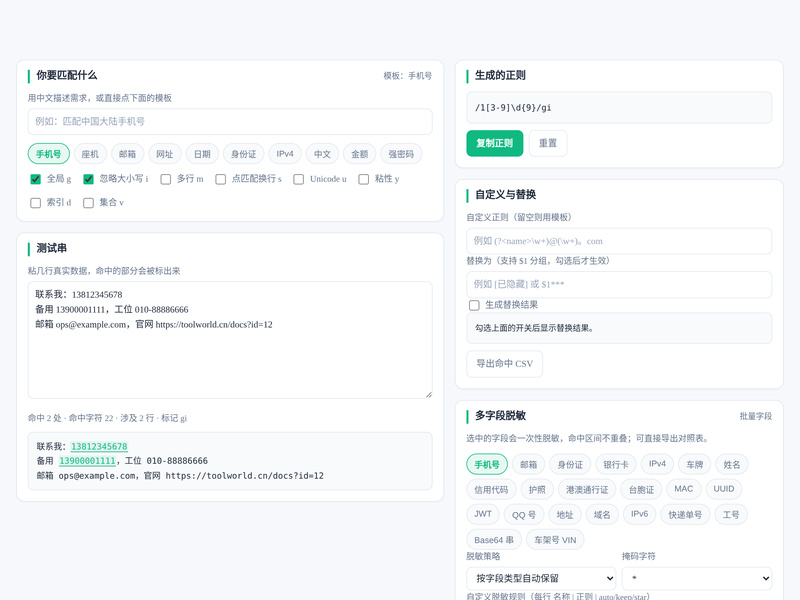
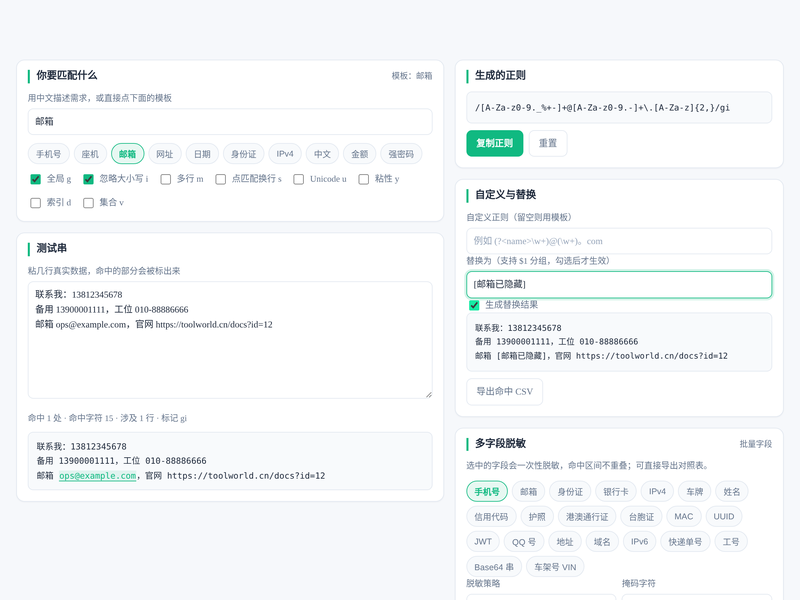
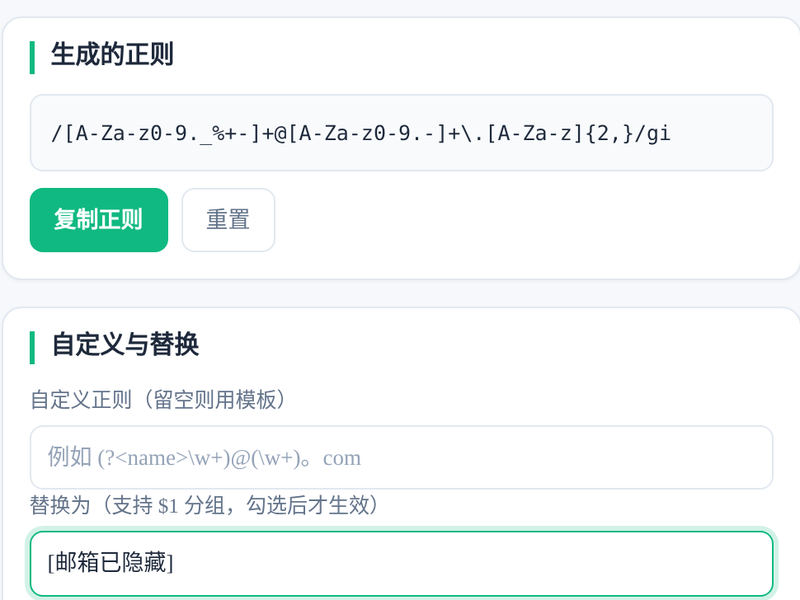
These three shots come from the final build of this plugin.
Features in detail
Ten templates: mobile, landline, email, URL, date, ID card, IPv4, CJK text, amount and strong password.
Keywords route to templates: typing phone, email or date selects the matching template automatically.
Segment explanations: the pattern is split into pieces with one line per piece, so \d{9} is no longer a guess.
Match preview: matched spans are highlighted, with counts for hits and matched characters.
Flag switches: g, i and m are reflected in the pattern suffix and recalculated instantly.
Safe execution: invalid patterns report an error instead of freezing, and empty matches are capped at 500.
What you get
Inputs
- A description or a template choice, either one is enough.
- Test text is optional and only used for the preview.
Outputs
- The pattern with its flags and a segment-by-segment explanation.
- Match stats: hit count, matched characters and the active flags.
Parameters
The workspace exposes 16 controls, from Describe the pattern or pick a template to Keep last M, and every one of them only affects the local rendering: nothing is sent back to a server.
Ranges and defaults: Mask strategy (Auto per field / keep first N and last M / mask everything / replace with type label), Mask character (* / • / X / #). Values outside the slider range are rejected rather than silently clamped.
| Control | Type | Range or options |
|---|---|---|
| Describe the pattern or pick a template | text | - |
| Global g | switch | - |
| Case-insensitive i | switch | - |
| Multiline m | switch | - |
| Dot matches newline s | switch | - |
| Unicode u | switch | - |
| Sticky y | switch | - |
| Indices d | switch | - |
| Unicode sets v | switch | - |
| Custom regex (blank uses template) | text | - |
| Replacement (supports $1, applied when checked) | text | - |
| Generate replacement output | switch | - |
| Mask strategy | select | Auto per field / keep first N and last M / mask everything / replace with type label |
| Mask character | select | * / • / X / # |
| Keep first N | number | - |
| Keep last M | number | - |
Typical cases
- A form needs a phone or ID pattern and you do not want to dig through old projects.
- Pulling every URL or email out of a log before changing code.
- Inheriting someone's regex and needing a readable breakdown before editing it.
In each of these cases the pass is the same: load the file, make one change, check the preview, export and reopen. Skipping the reopen step is why people later discover a transparent halo or a truncated table that looked fine on screen.
A worked pass
Step 1: Type the need in the description box, such as match email, or click a template chip. Read the hint line before touching anything: it tells you which prerequisite is missing.
Step 2: Toggle global, case-insensitive and multiline flags and watch the suffix change. Do not start with the most extreme setting; one small change is enough to see whether the result moves in the right direction.
Step 3: Read the segment list on the right to confirm each group means what you intended. Check the preview at 100% rather than the fitted view, because artefacts often hide in the downsampled version.
Step 4: Paste real data into the test area and check the highlighted spans. Export once, open the file in a local viewer, and only then decide the settings are final.
Step 5: Copy the pattern into code, remembering to escape backslashes again inside strings. Keep the source file untouched so you can repeat the pass with a different setting without re-importing.
Walking through the controls
The Describe the pattern or pick a template field accepts free text. Paste a realistic value rather than a placeholder, because both the preview and the exported file depend on what you type here; an empty value usually means the tool falls back to a default derived from the file itself.
The Global g switch is a binary choice. Turn it off first to record what the default output looks like, then turn it back on and export once so you can confirm the difference survives outside the preview. On a slow machine the redraw is scheduled rather than immediate, so wait for the status line to settle before judging the result.
The Case-insensitive i switch is a binary choice. Turn it off first to record what the default output looks like, then turn it back on and export once so you can confirm the difference survives outside the preview. On a slow machine the redraw is scheduled rather than immediate, so wait for the status line to settle before judging the result.
The Multiline m switch is a binary choice. Turn it off first to record what the default output looks like, then turn it back on and export once so you can confirm the difference survives outside the preview. On a slow machine the redraw is scheduled rather than immediate, so wait for the status line to settle before judging the result.
The Dot matches newline s switch is a binary choice. Turn it off first to record what the default output looks like, then turn it back on and export once so you can confirm the difference survives outside the preview. On a slow machine the redraw is scheduled rather than immediate, so wait for the status line to settle before judging the result.
The Unicode u switch is a binary choice. Turn it off first to record what the default output looks like, then turn it back on and export once so you can confirm the difference survives outside the preview. On a slow machine the redraw is scheduled rather than immediate, so wait for the status line to settle before judging the result.
The Sticky y switch is a binary choice. Turn it off first to record what the default output looks like, then turn it back on and export once so you can confirm the difference survives outside the preview. On a slow machine the redraw is scheduled rather than immediate, so wait for the status line to settle before judging the result.
The Indices d switch is a binary choice. Turn it off first to record what the default output looks like, then turn it back on and export once so you can confirm the difference survives outside the preview. On a slow machine the redraw is scheduled rather than immediate, so wait for the status line to settle before judging the result.
The Unicode sets v switch is a binary choice. Turn it off first to record what the default output looks like, then turn it back on and export once so you can confirm the difference survives outside the preview. On a slow machine the redraw is scheduled rather than immediate, so wait for the status line to settle before judging the result.
The Custom regex (blank uses template) field accepts free text. Paste a realistic value rather than a placeholder, because both the preview and the exported file depend on what you type here; an empty value usually means the tool falls back to a default derived from the file itself.
The Replacement (supports $1, applied when checked) field accepts free text. Paste a realistic value rather than a placeholder, because both the preview and the exported file depend on what you type here; an empty value usually means the tool falls back to a default derived from the file itself.
The Generate replacement output switch is a binary choice. Turn it off first to record what the default output looks like, then turn it back on and export once so you can confirm the difference survives outside the preview. On a slow machine the redraw is scheduled rather than immediate, so wait for the status line to settle before judging the result.
The Mask strategy dropdown offers Auto per field / keep first N and last M / mask everything / replace with type label. Switching it re-renders the preview immediately, so compare two neighbouring options rather than jumping across the whole list; the exported file follows the option that is selected at the moment you press export, not the one you looked at earlier.
The Mask character dropdown offers * / • / X / #. Switching it re-renders the preview immediately, so compare two neighbouring options rather than jumping across the whole list; the exported file follows the option that is selected at the moment you press export, not the one you looked at earlier.
The Keep first N field accepts free text. Paste a realistic value rather than a placeholder, because both the preview and the exported file depend on what you type here; an empty value usually means the tool falls back to a default derived from the file itself.
The Keep last M field accepts free text. Paste a realistic value rather than a placeholder, because both the preview and the exported file depend on what you type here; an empty value usually means the tool falls back to a default derived from the file itself.
Practical notes
Keep the browser window above 1200 pixels wide while working: below that the right column collapses under the left one and you lose the side-by-side view.
Use the reset control between experiments; carrying state from a previous pass is the most common reason a setting appears to have no effect.
If a control looks unresponsive, check the hint line first: most no-op states are caused by a missing file rather than a broken button.
Export after every meaningful change rather than at the very end, so you still have a known-good file if the next experiment goes wrong.
On a laptop with a scaled display the preview is drawn at device pixel ratio, so text that looks crisp on screen stays crisp in the exported image at the same size.
Compare your result against the limits section: if you are working outside the documented range, the tool may still run but the output quality is not guaranteed.
Long sessions are fine because nothing is uploaded, but reload before switching to a different kind of file so cached state cannot leak into the new pass.
The controls you will touch most often here are Describe the pattern or pick a template, Global g, Case-insensitive i, Multiline m.
Self-check list
Run the workflow once with a real file and confirm the result pane shows content, not the empty state.
Push every slider to its minimum and maximum and confirm the readout follows without an error.
Switch each dropdown and confirm the preview and the export change together.
Export once and reopen the file with a local viewer to confirm it is not truncated.
Reset the workspace and confirm all panels return to the empty state.
Reload the page and confirm no previous result is restored by accident.
FAQ
Q: Why does the mobile pattern miss longer numbers?
A: It encodes mainland eleven-digit mobiles starting with 1 and a second digit from 3 to 9; international numbers need another template.
Q: Why does the preview differ from my code?
A: Usually the flags differ or backslashes were eaten in a string literal. Align g/i/m first, then check escaping.
Q: Can I use it for server-side validation?
A: Yes, but add anchors and length limits, and mind dialect differences between JS and PCRE.
Q: The copied pattern fails to compile in my code. Why?
A: The preview follows JavaScript syntax and the exported text has no /.../gi wrapper; adapt grouping and escaping when moving to Python or PCRE.
Q: The Chinese template does not match in another engine.
A: The pattern uses the common CJK range; engines that reject that range need an explicit character set instead.
Q: Can a heavy pattern freeze it?
A: Templates stay within two or three groups. Very long custom patterns can still backtrack badly, so try them on a small sample first.
Q: Does the file leave my device?
A: No. Everything runs inside the browser; requireNetwork is false and no upload happens.
Q: Which browsers does it run in?
A: Current Chrome, Edge, Firefox and Safari builds; no extension or plugin is needed.
Q: Why does the exported file differ in size from the source?
A: The export re-encodes the result, so size follows the chosen format and quality settings.
Limits
- Templates and explanations only; no free-form generation of arbitrary complex patterns.
- No ReDoS risk assessment; nested quantifiers still need your own stress tests.
- The ID template skips the checksum and mobiles exclude international numbers.
Design trade-offs
A template is a finished pattern, so choosing one is a single substitution at build time and generation costs almost nothing. The real work is previewing: matches are collected as start and length pairs and turned into HTML in one pass, so the DOM is touched once per preview rather than once per match.
Zero-length matches are the classic way to hang a preview, so the loop forces progress by one character and stops after 500 iterations with a warning that the pattern may be too broad.
Troubleshooting
The phone template targets 11-digit mainland numbers starting with 1 followed by 3 to 9. Clean country codes and separators out of the data first instead of growing the pattern.
Never parse HTML or JSON with a regex; the URL template only extracts links from plain text and does not validate markup.
Nested quantifiers such as (a+)+ backtrack exponentially on long input. Rewrite the pattern before raising any timeout.
Workflow and acceptance
Extract fields from real logs in two passes: start with a loose pattern to catch candidates, then tighten. Writing the strictest pattern first usually fails outside the sample.
Clean data on ten rows by hand before running the whole set; a jump in match rate during the full run usually means the pattern is too loose.
Accept when every positive sample matches, every negative sample does not, empty input is safe, and a hundred-thousand-character input returns in under a second.
Performance and resource budget
Matching is cheap: a few hundred characters with a dozen hits takes 5 to 7 ms end to end, DOM rebuild included. Cost scales with text length times hit count because each hit is sliced and wrapped in a mark node; very long texts push the preview node count to its practical limit.
Rendering is signature-guarded, so unchanged input, template, flags and replacement settings skip the redraw. The scan uses an exec loop capped at 500 iterations to avoid zero-width infinite loops, and replacement uses native String.replace so group references are handled by the engine.
CSV export is built only on click and never participates in live rendering; large hit sets produce a bigger file but the work is pure string joining with no canvas or DOM involvement.
Worked case: log redaction with an audit trail
Scenario: a 300-line access log goes to a third party; phone numbers and emails must be masked and you need proof of how many replacements happened. Approach: pick the phone template, enable replacement with [phone hidden], and first confirm in the preview that all eleven digits are replaced rather than just the first three; then run the email template. Both act on the current text without copy-paste round trips.
Why the CSV matters: the hit list exports index, line, start, length and original text across five columns with a UTF-8 BOM so Excel opens it cleanly. Its value is auditability - whether a 300-line file had 17 or 19 hits is answerable afterwards.
Limits: the phone template targets mainland eleven-digit numbers, so +86 prefixed ones are missed, and the email template skips quoted local parts. For those, use a custom regex (it takes precedence) such as (?:\+86)?1[3-9]\d{9}; invalid patterns report the reason instead of failing silently.
Version and compliance
This build is v1.6.1 on ToolCMS plugin spec 3.19, schemaVersion 2.1 and coreVersion 3.7.4. All processing happens inside the browser, requireNetwork is false and no file leaves the device.