Payroll tutorial - 356 city bases and multi-city comparison
This walkthrough follows the real order of work: what the tool is for, what each control does, a five step pass, and a self-check before you ship the export.
When to use
A payslip shows one social insurance line, which hides how much the employee and the employer each pay. This tool splits the six items, multiplying each rate by the base and reporting employee, employer and total, then rolling up take-home pay and annual amounts.
Six cities ship with default rates and base limits, but policies change every year, so every rate is editable. Adjust them to your city before trusting the numbers.
One base change refreshes six rows and the totals in about 3 ms, so no input debounce is needed.
The calculation walks a single six-item array and writes into existing table cells, while the rate inputs stay mounted, so recalculation causes no layout churn.
Steps
- Pick a city first; base limits and default rates fill in automatically.
- Enter the contribution base, usually at or below salary, clamped at the ceiling.
- Enter pre-tax salary and bonus months for the take-home and annual view.
- Adjust rates to local policy and watch the split table and take-home update.
- Copy the breakdown into a spreadsheet or screenshot it for review.
Screenshots
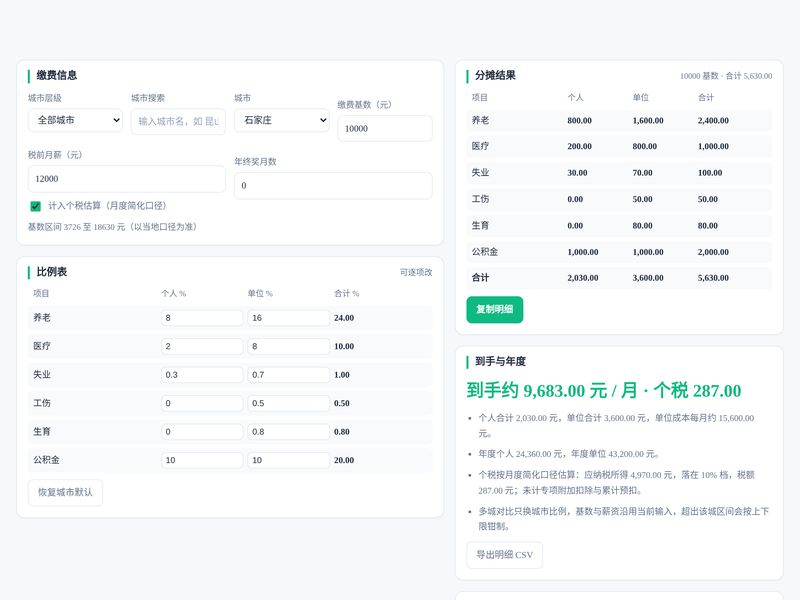
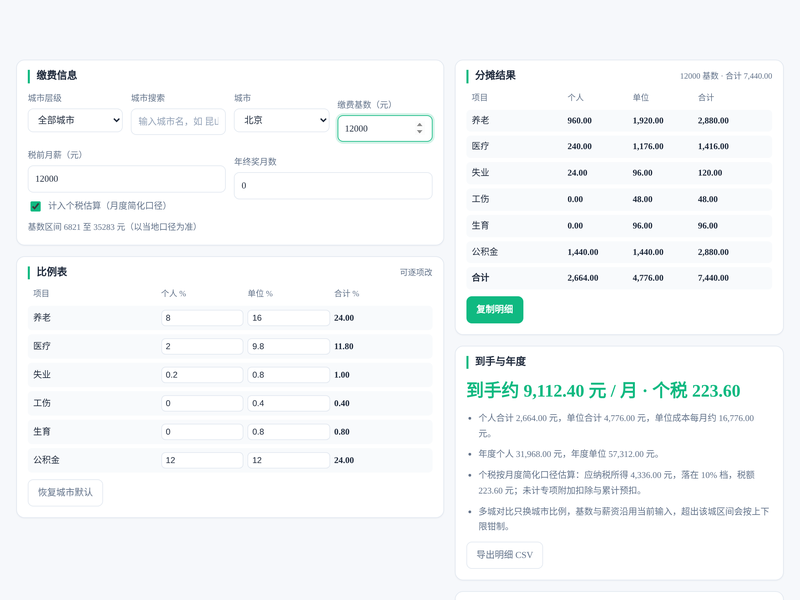
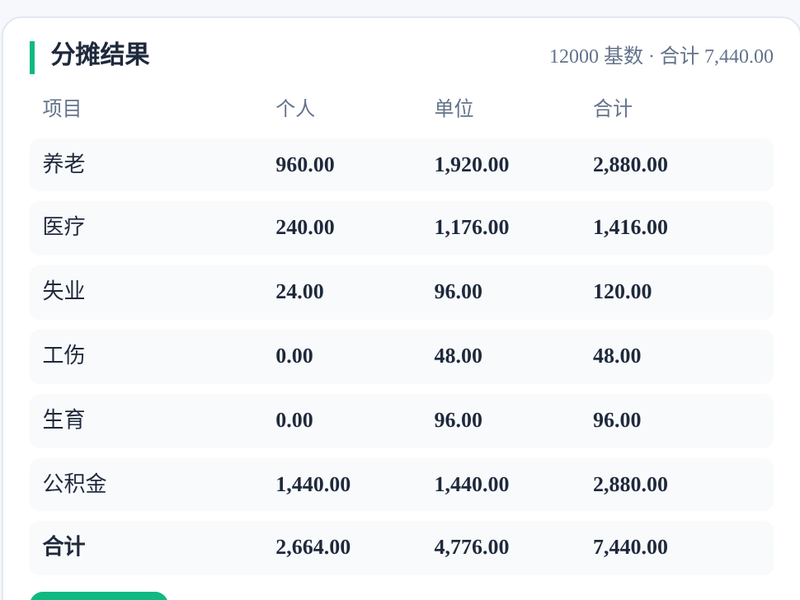
These three shots come from the final build of this plugin.
Features in detail
Six items split: pension, medical, unemployment, injury, maternity and housing fund, employee and employer separated.
Editable rates: each percentage is an input, and totals recalculate as you type.
Base guidance: the chosen city shows its floor and ceiling, and values outside are clamped.
Take-home estimate: monthly salary minus the employee share, before income tax.
Annual view:yearly employee and employer totals plus the monthly employer cost.
Copyable table: tab-separated text you can paste straight into a spreadsheet.
What you get
Inputs
- City, contribution base and pre-tax salary are required; bonus months are optional.
- The six employee and employer rates are editable and default to the selected city.
Outputs
- A six-row split table with employee, employer and total amounts.
- Take-home estimate plus annual employee and employer totals.
Parameters
The workspace exposes 8 controls, from City tier to Include income tax estimate (monthly simplified), and every one of them only affects the local rendering: nothing is sent back to a server.
Ranges and defaults: City tier (All / Tier 1 / New Tier 1 / Tier 2 / Tier 3 / Tier 4 / Tier 5 and below (incl. county-level)). Values outside the slider range are rejected rather than silently clamped.
| Control | Type | Range or options |
|---|---|---|
| City tier | select | All / Tier 1 / New Tier 1 / Tier 2 / Tier 3 / Tier 4 / Tier 5 and below (incl. county-level) |
| City search | text | - |
| City | select | - |
| Contribution base (CNY) | number | - |
| Gross monthly salary (CNY) | number | - |
| Annual bonus (months) | number | - |
| Include income tax estimate (monthly simplified) | switch | - |
| Include income tax estimate (monthly simplified) | select | - |
Typical cases
- Reading an offer and wanting the real employer cost per month.
- Checking a payslip to confirm all six items were deducted correctly.
- Building an annual budget for employee and employer contributions.
In each of these cases the pass is the same: load the file, make one change, check the preview, export and reopen. Skipping the reopen step is why people later discover a transparent halo or a truncated table that looked fine on screen.
A worked pass
Step 1: Pick a city first; base limits and default rates fill in automatically. Read the hint line before touching anything: it tells you which prerequisite is missing.
Step 2: Enter the contribution base, usually at or below salary, clamped at the ceiling. Do not start with the most extreme setting; one small change is enough to see whether the result moves in the right direction.
Step 3: Enter pre-tax salary and bonus months for the take-home and annual view. Check the preview at 100% rather than the fitted view, because artefacts often hide in the downsampled version.
Step 4: Adjust rates to local policy and watch the split table and take-home update. Export once, open the file in a local viewer, and only then decide the settings are final.
Step 5: Copy the breakdown into a spreadsheet or screenshot it for review. Keep the source file untouched so you can repeat the pass with a different setting without re-importing.
Walking through the controls
The City tier dropdown offers All / Tier 1 / New Tier 1 / Tier 2 / Tier 3 / Tier 4 / Tier 5 and below (incl. county-level). Switching it re-renders the preview immediately, so compare two neighbouring options rather than jumping across the whole list; the exported file follows the option that is selected at the moment you press export, not the one you looked at earlier.
The City search field accepts free text. Paste a realistic value rather than a placeholder, because both the preview and the exported file depend on what you type here; an empty value usually means the tool falls back to a default derived from the file itself.
The City dropdown offers several presets. Switching it re-renders the preview immediately, so compare two neighbouring options rather than jumping across the whole list; the exported file follows the option that is selected at the moment you press export, not the one you looked at earlier.
The Contribution base (CNY) field accepts free text. Paste a realistic value rather than a placeholder, because both the preview and the exported file depend on what you type here; an empty value usually means the tool falls back to a default derived from the file itself.
The Gross monthly salary (CNY) field accepts free text. Paste a realistic value rather than a placeholder, because both the preview and the exported file depend on what you type here; an empty value usually means the tool falls back to a default derived from the file itself.
The Annual bonus (months) field accepts free text. Paste a realistic value rather than a placeholder, because both the preview and the exported file depend on what you type here; an empty value usually means the tool falls back to a default derived from the file itself.
The Include income tax estimate (monthly simplified) switch is a binary choice. Turn it off first to record what the default output looks like, then turn it back on and export once so you can confirm the difference survives outside the preview. On a slow machine the redraw is scheduled rather than immediate, so wait for the status line to settle before judging the result.
The Include income tax estimate (monthly simplified) dropdown offers several presets. Switching it re-renders the preview immediately, so compare two neighbouring options rather than jumping across the whole list; the exported file follows the option that is selected at the moment you press export, not the one you looked at earlier.
Practical notes
Keep the browser window above 1200 pixels wide while working: below that the right column collapses under the left one and you lose the side-by-side view.
Use the reset control between experiments; carrying state from a previous pass is the most common reason a setting appears to have no effect.
If a control looks unresponsive, check the hint line first: most no-op states are caused by a missing file rather than a broken button.
Export after every meaningful change rather than at the very end, so you still have a known-good file if the next experiment goes wrong.
On a laptop with a scaled display the preview is drawn at device pixel ratio, so text that looks crisp on screen stays crisp in the exported image at the same size.
Compare your result against the limits section: if you are working outside the documented range, the tool may still run but the output quality is not guaranteed.
Long sessions are fine because nothing is uploaded, but reload before switching to a different kind of file so cached state cannot leak into the new pass.
The controls you will touch most often here are City tier, City search, City, Contribution base (CNY).
Self-check list
Run the workflow once with a real file and confirm the result pane shows content, not the empty state.
Push every slider to its minimum and maximum and confirm the readout follows without an error.
Switch each dropdown and confirm the preview and the export change together.
Export once and reopen the file with a local viewer to confirm it is not truncated.
Reset the workspace and confirm all panels return to the empty state.
Reload the page and confirm no previous result is restored by accident.
FAQ
Q: Why is this a few dozen yuan off my payslip?
A: Usually the base differs: payslips use the assessed base while this tool uses yours. Injury rates also vary by industry, so set them locally.
Q: Why is take-home not my net pay?
A: Only the employee share is subtracted. Income tax, allowances and supplementary plans are not included.
Q: Can I contribute on the minimum base?
A: Some cities allow the floor, but pension and fund benefits drop accordingly. The tool clamps out-of-range values; confirm local rules.
Q: Why did my base amount change by itself?
A: A base outside the city range is clamped to the bound and written back to the field immediately, so the table is never computed from an invalid base.
Q: Can employee and employer rates be edited separately?
A: Yes. Each item has one field for the employee rate and one for the employer rate, and editing either side recalculates totals immediately.
Q: Why does it differ from my payslip?
A: Base definition and industry injury rates explain most gaps. Set the rates to the payslip values, then check for supplementary cover or tax.
Q: Does the file leave my device?
A: No. Everything runs inside the browser; requireNetwork is false and no upload happens.
Q: Which browsers does it run in?
A: Current Chrome, Edge, Firefox and Safari builds; no extension or plugin is needed.
Q: Why does the exported file differ in size from the source?
A: The export re-encodes the result, so size follows the chosen format and quality settings.
Limits
- Six fixed-rate items only, without income tax, allowances or enterprise annuities.
- City defaults approximate common practice and need editing after policy changes.
- No cross-province transfers, retroactive payments or gap rules.
Design trade-offs
The calculation runs in three stages, base, six rates, then employee and employer shares. Rates live in an array rather than in scattered constants, so every edit goes through the same recompute path and the totals cannot drift away from the fields.
The base is clamped to the selected city range after input and before calculation, and both the raw input and the effective base stay on screen so a clamped value is never silent.
Troubleshooting
Bases change every year and the built-in ranges are examples; reconcile against the current local announcement before payroll use.
Housing fund rates can differ between employer and employee, so edit the correct side and watch the total move.
Take-home is no longer gross minus the employee share: with tax enabled the tool applies a 5000 monthly threshold and seven progressive brackets, then subtracts the result. Payslips use cumulative withholding, which advances brackets through the year, so treat this as a magnitude check rather than a filing figure.
The six-city table reuses the current base and salary but clamps each city to its own floor and ceiling; a lower employee contribution usually reflects a lower floor, not a better deal.
Workflow and acceptance
For payroll estimates, compute one standard month first and multiply by headcount; joiners, leavers and bonuses are separate line items rather than a scaled total.
When comparing offers across cities, use employer cost rather than take-home pay, because base ranges change the cost of the same salary.
Accept when item sums match the totals, a clamped base is shown explicitly, editing one rate moves the total immediately, and the copied breakdown pastes into a spreadsheet with aligned columns.
Performance and resource budget
The maths is pure arithmetic: six rates times a base, one piecewise tax function, and six iterations for the city table. Measured at 4 to 5 ms, roughly one layout pass, which is why there is no debounce here - input renders immediately.
Tax lookup is a seven-bracket table with a single multiply-and-subtract after locating the band, no nested loops; the city comparison is six multiply-accumulates. The real cost is DOM: a dozen rows times four columns rebuilt on every keystroke, which is why a signature guard skips redraws when nothing changed.
No history is retained; each run overwrites the current table, and CSV text is assembled on click without keeping intermediate objects.
Worked case: relocating from Shijiazhuang to Beijing
Scenario: a 6000 salary contributed on a 6000 base in Shijiazhuang, then a Beijing offer declaring a 12000 base; how much does take-home actually change? Shijiazhuang: 20.3% personal total (8 pension, 2 medical, 0.3 unemployment, 10 housing fund) means 1218 deducted, taxable 4782 below the 5000 threshold, tax 0, take-home 4782. Beijing: 22.2% (8, 2, 0.2, 12) gives 2664 deducted, taxable 9336 minus 5000 is 4336, taxed at 10% less the 210 quick deduction, about 224 tax, take-home 9112.
Do not read only the total: of the extra 1446 in Beijing, 960 goes to the personal pension account, 240 to the medical account, 1440 to the housing fund, and 24 more to unemployment. The first three are accessible or withdrawable, so only the 224 tax truly disappears. The housing fund stepping from 10% to 12% is a major part of the gap, which is why the comparison splits six items instead of printing one sum.
Cross-city caveat: Beijing clamps to 6821-35283 and Shijiazhuang to 3726-18630. Declaring 6000 in Beijing is clamped up to 6821, declaring 40000 is clamped down to 35283. The calculator clamps and writes the value back so the number shown is the number used, and each city in the comparison applies its own band and local rates.
Version and compliance
This build is v1.6.1 on ToolCMS plugin spec 3.19, schemaVersion 2.1 and coreVersion 3.7.4. All processing happens inside the browser, requireNetwork is false and no file leaves the device.